Mailbox Migration over IMAP: A Practical Guide


An IMAP mailbox migration copies an account's folders, messages and read or flagged status from one server to another using the standard IMAP protocol. It works between almost any two providers. That's why it's the default route for leaving an old host, consolidating accounts or moving to Microsoft 365. There are limits. IMAP moves mail only, message sizes matter, and cutover carries the greatest risk. This guide covers what transfers, preparation, single-mailbox and bulk migrations, and how to catch mail that arrives during the move.
TL;DR
- IMAP migration copies mail folders and messages only. Move contacts, calendars and tasks separately.
- Before copying mail, confirm hostnames and ports, check destination quotas, switch off archiving policies and run a dry run.
- For one mailbox, imapsync handles incremental copies and repeat runs. Microsoft 365 accepts a CSV file and migration batch for bulk moves.
- Run a pilot before touching DNS. Then change MX records, watch the old inbox for a few days and finish with a sync that copies nothing new.
- When a migration stalls, check size limits, folder mapping and duplicates. Make sure IMAP is enabled at the source too.
Table of Contents
What an IMAP migration moves, and what it leaves behind
Microsoft describes IMAP migration as moving email from a source system into Microsoft 365 or Office 365 using IMAP. It can migrate items in the inbox and other mail folders, but not contacts, calendar items or tasks. IMAP handles mail rather than address books or calendars. One migration vendor explains that IMAP is mail-only, so it cannot carry non-email content by design.
In practice, set expectations early with whoever owns the mailboxes:
- Moves: folders, subfolders, messages, and flags such as Seen, Answered and Flagged. The imapsync documentation says folders, subfolders, messages and those flags are transferred.
- Stays behind: address books, calendar entries and tasks. Export them separately, usually as vCard and iCalendar files, then import them at the destination.
- Does not move: rules, signatures, filters and app passwords. You'll need to rebuild these by hand. Tell people beforehand.
IMAP migration copies in one direction. The source stays untouched, leaving you the original if something goes wrong. It doesn't synchronise changes both ways.
Prepare before you copy anything
Before you copy anything, work out which mailboxes need to move. Check that they'll fit at the destination and that both servers accept the connections.
Audit the mailboxes
List the source mailboxes. Mark each as active, archived or ready to drop. A migration checklist from one vendor recommends auditing source mailboxes to separate active from archive accounts and checking that destination quotas exceed the source data volume. Check them individually. One 40 GB mailbox won't fit into a 25 GB allowance because the other mailboxes are small.
Confirm connection details
Confirm the source IMAP hostname and port. The same checklist notes that port 993 is used for SSL/TLS and 143 for STARTTLS or unencrypted connections, and that the source server must allow concurrent connections. Some hosts limit simultaneous logins per account. Open several migration connections and you can be refused even with the right password. Use an encrypted connection.
Switch off policies that delete or move mail
Microsoft recommends disabling Messaging Records Management (MRM) and archival policies on the source before migrating, because those policies can move or delete messages mid-run and make them look missing. After cutover, restore the policies you still need.
Create the destination mailboxes
Create both accounts first. Flashcloud's instructions state that both mailboxes must already exist and recommend a dry run first to surface authentication or folder-mapping problems before any message is written. We'd run that check every time.
Lower your DNS TTL
Lower the DNS TTL on your MX records a day or two before cutover if you're changing them. Let the previous TTL expire before switching. A lower TTL can shorten the time resolvers retain the old records, but you'll still need to watch both providers.
Migrating one mailbox with imapsync
For one mailbox or a handful, imapsync lets you repeat the copy. The official project site describes it as an incremental, recursive IMAP transfer tool that copies one mailbox to another, can be restarted without generating duplicates and preserves the folder hierarchy.
The basic shape is one command with a source and a destination:
imapsync --host1 old.example.com --user1 jo@example.com --password1 '...' \
         --host2 new.example.com --user2 jo@example.com --password2 '...'
The project documentation says the source and destination are given with --host1, --user1, --password1 and --host2, --user2, --password2, and that the basic operation runs one way, from the first mailbox to the second. Before running it, check the order. Old server first. New server second.
Dry run, then the real run
Start with --dry. It connects, logs in, lists folders and reports what it would copy without writing anything. Fix authentication or folder-mapping errors first, then remove that flag for the real copy.
Why rerunning is safe
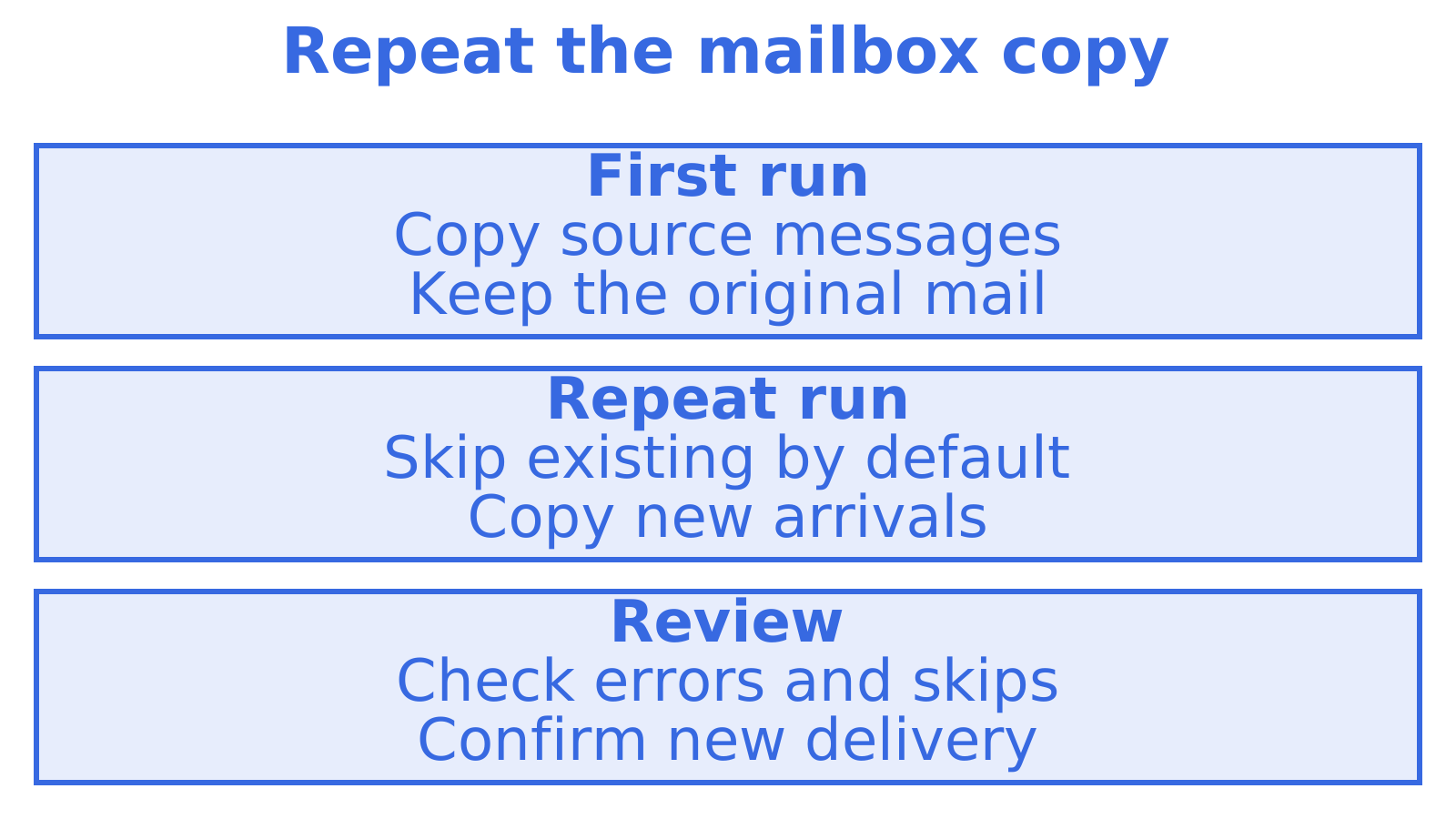
imapsync checks whether messages are already present before copying them. The project's documentation states that messages already present at the destination are not transferred again by default. Run the long first copy days before cutover, then a shorter follow-up afterwards. Check every run's logs.
Two flags worth knowing
Kopano's administrator documentation recommends --automap for mapping special folders and --useheader Message-Id to avoid duplicates when you rerun. Servers use different names for special folders such as Sent, Drafts, Trash and Junk. Check the mapping during your pilot so you don't end up with separate "Sent Items" and "Sent" folders.
The same page warns that --delete2 can cause data loss: it deletes destination messages that aren't on the source. Leave it out unless you're deliberately making the destination a mirror.
Migrating many mailboxes in bulk
Track each mailbox during a bulk migration. When the destination is Microsoft 365, Microsoft says bulk migration uses a batch and a CSV file listing the email address, username and password of each mailbox.
A few habits make bulk runs calmer:
- Start with a pilot batch of three to five mailboxes. Include your largest mailbox and one with an awkward folder structure.
- Group by size. Give heavy mailboxes their own batch so everyone else's cutover doesn't have to wait for them.
- Keep the CSV out of shared drives. Those are mailbox passwords. Delete the file once the migration finishes.
- Record per-mailbox results, including item counts at both ends, skipped messages and errors. Use the counts to investigate missing mail. Matching totals alone don't prove every message arrived.
If you're scripting imapsync, loop over a credentials file and give each mailbox its own log. When mailbox 87 fails, you can go straight to its errors.
The migratezilla checklist recommends completing a pilot migration before cutting over DNS records. Test authentication, folder mapping and delivery in the pilot. Then commit the remaining mailboxes.
Cutover: handling the mail that arrives mid-move
During cutover, new mail can reach the destination while other messages still arrive at the source. Keep both accounts available. You'll need them to test delivery and copy the remaining mail.
The sequence
- Run the long initial sync days ahead of time.
- Point the domain's MX records at the new provider. DNSimple's guidance is to verify propagation with online tools and dig, then test delivery.
- Watch both inboxes for a few days. While DNS caches expire, mail can still arrive at the old provider. Include anything that lands there in your follow-up syncs.
- Run imapsync again. Flashcloud recommends repeating the sync after new mail has continued arriving at the source, and treating the destination as complete once a final run copies zero new messages.
- Leave cancellation until last. DNSimple's advice is to cancel only after confirming delivery to the new provider and checking that no important emails remain at the old one.
Put the "zero new messages" run on your checklist, along with delivery tests and a review of skipped messages. Check the errors too. Excluded messages or errors can leave the copy count at zero even when mail is missing.
Troubleshooting the failures that stall migrations
| Symptom | Likely cause | What to do |
|---|---|---|
| Login refused | Wrong host or port, or IMAP disabled | Recheck host and port (993 or 143), and confirm IMAP is enabled for the user |
| Some messages skipped | Size or item limits | Check against the 500,000 item and 35 MB limits below |
| Duplicate folders such as Sent and Sent Items | Special folders not mapped | Use --automap with imapsync |
| Duplicate messages after a rerun | Messages matched on the wrong criteria | Match on Message-Id with --useheader |
| Migration very slow | Source throttling or concurrency limits | Reduce parallel connections, run off-peak |
Limits you will hit
Microsoft states that IMAP migrations are limited to a maximum of 500,000 items per mailbox and a maximum message size of 35 MB. Find oversized messages before you start. Ask the owner whether to save their attachments elsewhere and trim the messages, or leave them behind.
When the connection details are right but nothing works
BitTitan's help centre says that when entered connection details fail, MigrationWiz permutes them to try different port and SSL configurations. Check which settings the source provider supports. These may be 993 with SSL/TLS or 143 with STARTTLS. Confirm the required encryption mode before retrying.
Slow migrations are normal
A 10 GB mailbox can take days without anything being broken. IMAP copies messages over a network connection, so the source server's speed, throttling and load affect the pace. Plan around your slowest pilot mailbox.
Gmail, Microsoft 365 and other provider quirks
Check the provider's access requirements. For Gmail sources, Microsoft's troubleshooting guidance says the administrator must make sure IMAP access is enabled at both the organisation level and the individual user level in the Google Admin console. If login fails, check the applicable access and authentication settings.
Once the migration is done, check programmatic sending separately. Our guides to Gmail OAuth sending errors and their fixes and Outlook sending limits cover authentication failures and sending constraints.
Choosing between a script and a hosted service? Our comparison of mailbox migration tools for developers walks through the options.
Our view: migrate the history, then stop treating mail as a pile of folders
We build email infrastructure for AI agents. When planning a migration for software, we'd settle mailbox ownership and access after the copy too. You might be replacing an IMAP and SMTP script connected to a shared Gmail account, or reviewing a Gmail OAuth integration as part of the move.
Software needs a different measure of success. For a human, success is "my folders look the same". For an agent, it's "I can find the right message, read the new reply without parsing a raw thread, and know what changed since I last looked". Copying folders over IMAP moves the history. Retrieval still needs work. If an agent re-lists a 200,000-message inbox on every poll, it'll be slow and expensive even with a faithful folder copy.
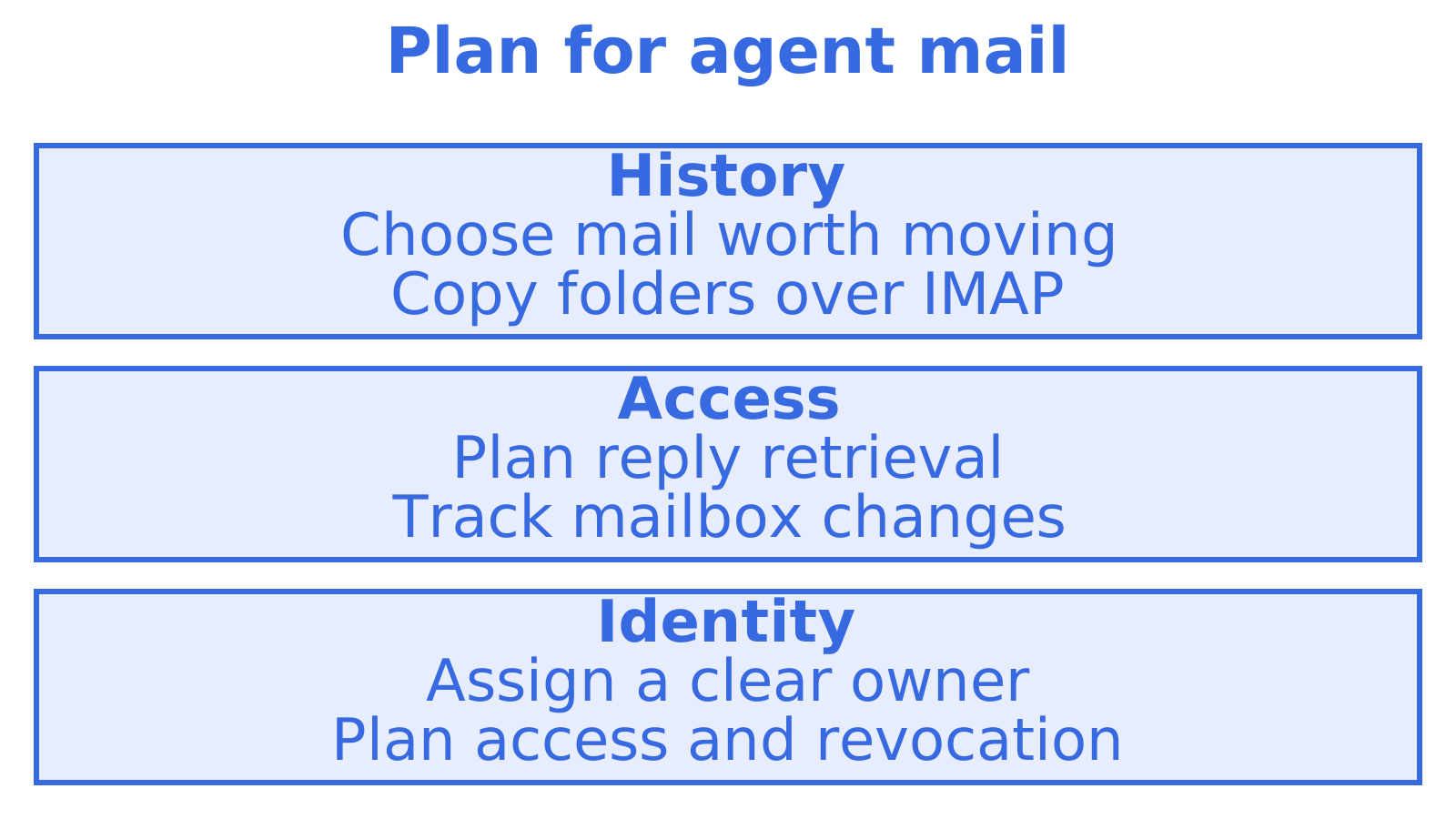
Before choosing a destination, we'd decide which history the agent needs and how it'll read new mail. Our Mailbox API guide can help you consider API access. When you're replacing SMTP scripts too, use SMTP versus an email API to review the sending trade-offs separately.
We'd give each agent, customer or tenant its own mailbox when it needs a separate identity. Each address then has a clear owner. Use that boundary when designing access and revocation.
Where Sendmux fits
If the end state of your migration is a mailbox that software uses, Sendmux gives each agent, workspace or tenant a real mailbox on the included @myagent.mx domain or on a custom domain verified for receiving. The Mailbox API sends and reads mail, lists threads and tracks send submissions. See inbound mailboxes for receiving and sending for outbound. Check the pricing page when comparing destinations. For planning how your application handles incoming mail after the move, read setting up an inbound email API.
Sources
Recommended
Frequently Asked Questions
Does IMAP migration move contacts and calendars?
No. IMAP migration covers mail in the inbox and other mail folders, but not contacts, calendar items or tasks, according to [Microsoft's IMAP migration documentation](https://learn.microsoft.com/en-us/exchange/mailbox-migration/migrating-imap-mailboxes/migrating-imap-mailboxes). Export them from the old system in standard formats, then import them at the destination.
Can I run the migration more than once?
Yes. With imapsync, [already-copied messages are skipped on later runs](https://github.com/imapsync/imapsync?tab=readme-ov-file) by default. Start the long first copy early. Run a shorter follow-up after cutover. Before you call it complete, check for errors and skipped messages too. A run that copies nothing new is one of those checks.
How long does an IMAP migration take?
A large mailbox can take days. Mailbox size, the source server's speed and throttling all affect the schedule. We'd time a pilot with your biggest mailbox and plan the move around that. Don't assume a small test mailbox predicts how long the largest one will take.
What are the size limits?
For Microsoft 365 IMAP migrations, Microsoft states a [maximum of 500,000 items per mailbox and 35 MB per message](https://learn.microsoft.com/en-us/exchange/mailbox-migration/migrating-imap-mailboxes/migrating-imap-mailboxes). Check other destinations' documentation before starting. They set their own limits.
When can I cancel the old mail service?
Confirm delivery to the new provider first. Check that no important mail remains only at the old one. DNSimple advises [checking both inboxes for a few days after the MX change](https://support.dnsimple.com/articles/managing-mx-records-when-changing-email-providers/). Run a final sync that copies zero new messages too, and review migration errors.
